

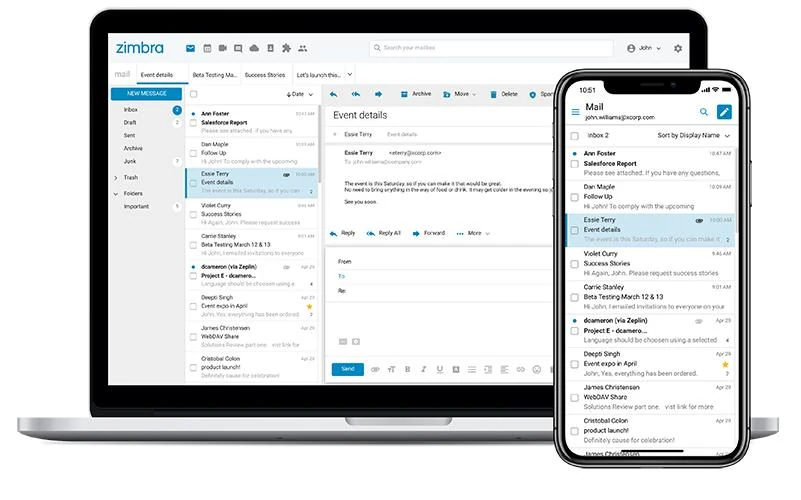
Email is an essential part of everyday communication. Whether you're working in an office, studying at a university, or managing a business, you need an email system that helps you stay organized and connected. That's where Zimbra email comes in.
If you've been given a Zimbra email account or have come across the platform while exploring business email solutions, you might be wondering what makes it different from Gmail or Outlook.
Zimbra email is part of a business communication platform that combines email, contacts, calendars, and collaboration tools in one place. It allows users to manage messages through a web browser or supported email applications, while organizations can control how their email services are hosted and managed. But Zimbra does more than send and receive messages.
In this guide, you'll learn what Zimbra email is, how to access your account, which features are useful, and how to set it up on your devices. We'll also explore security, pricing, and common problems.
What Is Zimbra Email?
Zimbra email is an email service powered by Zimbra Collaboration, an enterprise communication platform developed by Synacor. It provides the technology organizations need to run professional email accounts and manage everyday communication.
Unlike a simple email application, Zimbra includes both the server technology that handles messages and the software people use to access their inboxes.
The platform can also provide shared calendars, contact directories, task management, and file-sharing capabilities.
According to Zimbra's official documentation, the platform is designed for businesses, educational institutions, and service providers that need a flexible email and collaboration solution.
Is Zimbra an Email Provider or an Email Server?
This is an important distinction. Zimbra is primarily an email server and collaboration software platform. A company or hosting provider uses that software to deliver email services to its users. For example, imagine you work for a company called Bright Solutions. Your business email address might be:
alex@brightsolutions.com
Although your address uses your company's domain, the email system behind it could be powered by Zimbra. When you sign in, you see the Zimbra webmail interface instead of Gmail or Microsoft Outlook. This means Zimbra provides the software, while your organization or hosting provider manages the actual email account.
Who Uses Zimbra Email?
Zimbra can serve different types of organizations. Businesses use it to manage employee email accounts and team communication. Universities may use it to provide institutional email services to students and staff. Hosting companies can also offer Zimbra-powered email accounts to their customers.
Government agencies and organizations with specific data-hosting requirements may choose Zimbra because it supports self-managed infrastructure and flexible deployment options. For everyday users, the experience can be quite simple: open your browser, sign in, and start working.
How Does Zimbra Email Work?
You don't need to understand email servers to use Zimbra. Still, knowing how the main components work makes the platform easier to understand. Zimbra has three important parts.
1. The Zimbra Mail Server
The mail server is responsible for handling email behind the scenes. When someone sends a message to your address, the sending mail system delivers it to the server responsible for your domain.
The Zimbra system processes the message and makes it available in your mailbox. When you send a message, the server helps deliver it to the recipient's email service. Administrators also use server settings to manage mailboxes, storage limits, spam protection, and other account policies.
2. The Zimbra Web Client
The Zimbra Web Client is the interface you see when accessing email through a browser. You can use it to read messages, compose emails, manage contacts, and access other enabled features.
It works in modern browsers such as Chrome, Firefox, Safari, and Microsoft Edge. You don't need to install a separate application just to use webmail.
3. Desktop and Mobile Email Access
Zimbra isn't limited to browser access. Depending on your organization's configuration, you may be able to connect your account to Microsoft Outlook, Apple Mail, Thunderbird, or another compatible email application.
Zimbra also provides mobile synchronization capabilities and a desktop application for supported environments. Some advanced integration features require appropriate licenses. This flexibility allows people to use an interface that fits their working habits.
How to Log In to Zimbra Email
One of the most common reasons people search for Zimbra email is to find their login page. The first thing to understand is that there isn't one universal login page for every Zimbra email account. Each organization or provider may use its own webmail address.
Step 1: Find Your Zimbra Webmail Login URL
Start with the login link given to you by your employer, university, or hosting provider. Some organizations use an address similar to:
https://mail.example.com
Others may use:
https://webmail.example.com
These are examples, not universal Zimbra login addresses. If you don't know the correct URL, check your account setup email or contact the organization that manages your mailbox. For security, avoid entering your password into unfamiliar websites that appear in search results.
Step 2: Enter Your Email Credentials
Once you reach your organization's verified Zimbra login page:
- Enter your username or full email address.
- Type your account password.
- Select a webmail version if the option appears.
- Click Sign In.
Your mailbox should open if the credentials are correct and the service is available. The exact login fields may vary between organizations.
Step 3: Choose Between Modern and Classic Webmail
Some Zimbra installations allow users to choose between two interfaces.
Modern Web App
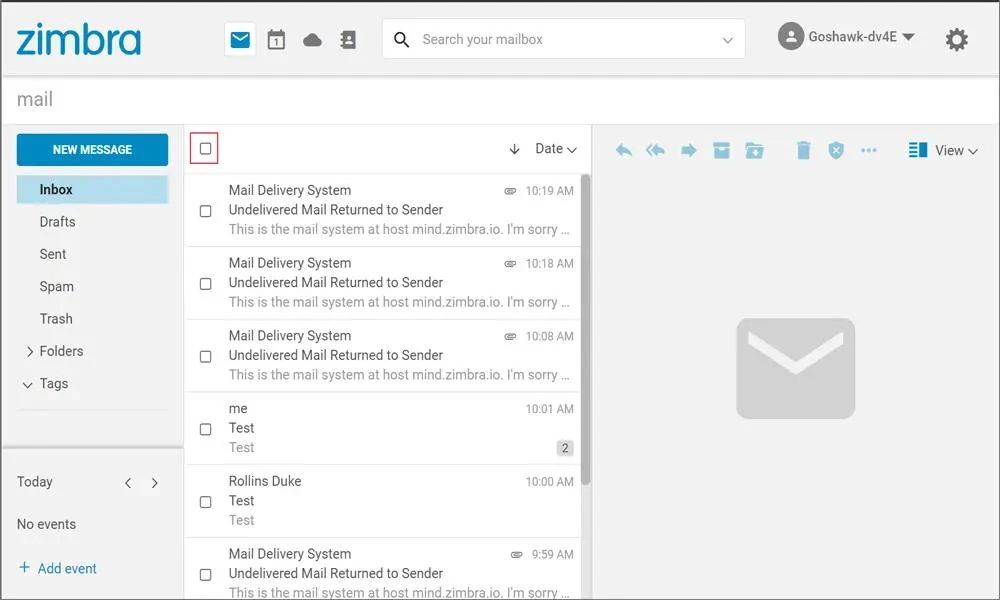
The Modern Web App is a responsive interface designed for contemporary browser use, including smaller screens.
Classic Web App
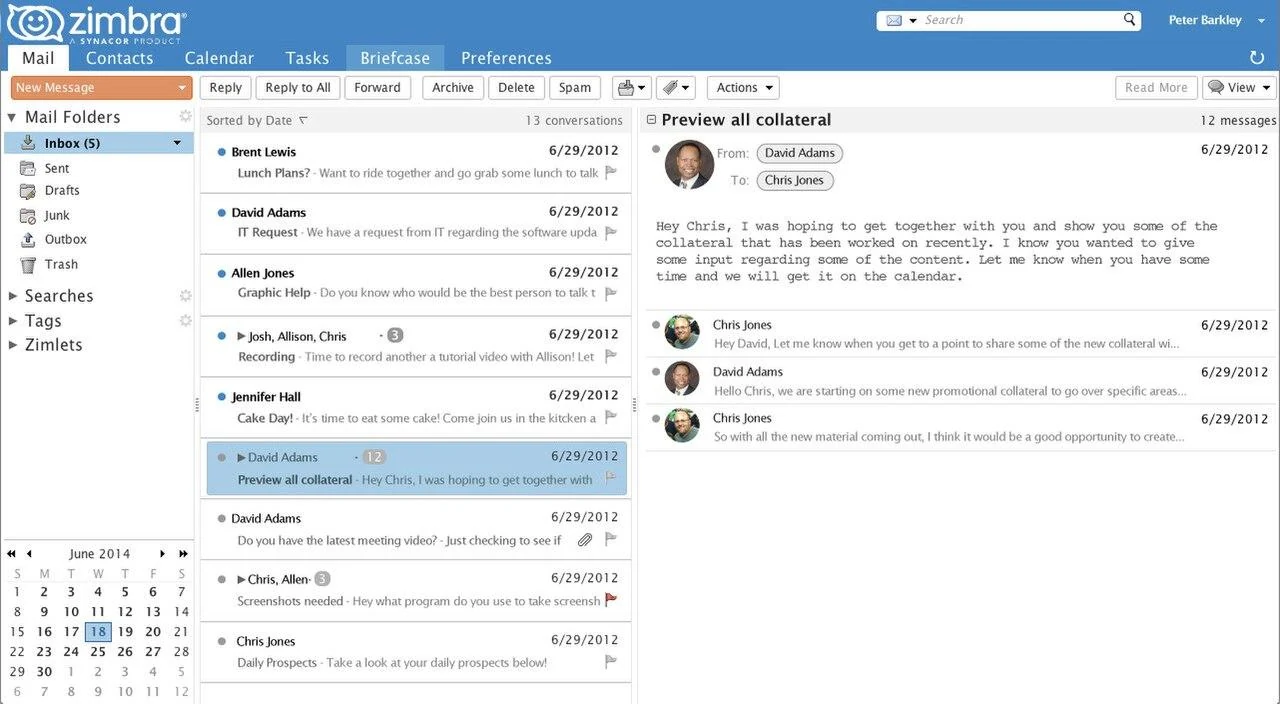
The Classic Web App is a more traditional interface familiar to long-time Zimbra users. Available features and interface choices depend on the deployment.
Zimbra's documentation explains that users can perform many everyday tasks in either interface, although their menus and controls may differ.
What If You Cannot Log In?
If Zimbra rejects your login, check a few things before assuming the service is down.
Make sure you're using the correct webmail address and account credentials.
If the login requires a complete email address, entering only the first part of your username may cause an error.
You can also try opening the verified login page in a private browser window to rule out problems with existing browser sessions.
If you've forgotten your password, use the password recovery method provided by your organization.
Some accounts are managed through a company's central identity system, so a normal Zimbra password reset may not be available.
If the problem continues, contact your email administrator.
Zimbra Email Features Worth Knowing
The biggest advantage of Zimbra is that several everyday communication tools can work together within one platform.
Here are the features most users are likely to find useful.
1. Email Management and Organization
Zimbra includes familiar email functions such as composing messages, replying, forwarding, and attaching files. It also provides tools to keep a busy inbox organized. You can create folders for specific projects, assign tags to messages, and configure filters to sort incoming emails automatically. For example, suppose you receive weekly reports from several departments. Instead of manually moving each message, you can create a filter that places messages from a particular sender into a dedicated folder. This makes important conversations easier to find later.
2. Search That Helps You Find Old Messages
Finding an email from several months ago can be difficult when your inbox contains thousands of messages. Zimbra supports message search and, depending on the version, advanced filters. You can search for messages using information such as the sender, subject, or keywords.
For example, entering:
from:manager@example.com
can help you find messages from a particular sender in supported search interfaces. Advanced search tools may also allow you to narrow results by folder or date. This is especially useful for people handling large volumes of work-related email.
3. Shared Calendars and Scheduling
Zimbra can provide calendar tools alongside email. You can create appointments, schedule meetings, and send invitations. In supported configurations, teams can share calendars and check availability before arranging meetings.
Consider a small marketing agency working on several client projects. Instead of exchanging repeated emails about meeting times, team members can use shared calendars to coordinate their schedules.
4. Contacts and Address Books
Zimbra includes contact management features that allow you to save and organize email addresses. Organizations may also provide a Global Address List, often called a GAL. This works like a shared employee directory. If you need to contact someone in another department, you may be able to find their email address by searching their name. It saves time and reduces the need to maintain separate contact lists.
5. Tasks and File Sharing
Some Zimbra deployments include task management and document-sharing features. These allow teams to keep track of assignments and share files with colleagues. For example, you might use email to discuss a project, a calendar to schedule its review meeting, and a shared folder to store related documents. The availability of these tools depends on your Zimbra edition and the features enabled by your provider.
6. Third-Party Integrations
Zimbra supports extensions called Zimlets, along with other integration methods. These can connect the platform to external applications. Zimbra documents integrations involving services such as Google Drive, Dropbox, Slack, and Zoom. Not every integration is included in every account, so availability should be checked with the provider or administrator.
How to Set Up and Use Zimbra Email
Once you're signed in, most everyday tasks should feel familiar if you've used another email service. Let's start with the basics.
How to Send an Email in Zimbra
To compose a new message:
- Open your Zimbra inbox.
- Select New Message or Compose, depending on the interface.
- Enter the recipient's email address.
- Add a subject line.
- Write your message.
- Attach a file if needed.
- Select Send.
Your message will normally appear in the Sent folder after it has been sent. You can also save unfinished messages as drafts.
How to Create Email Folders
Folders are helpful when you receive messages from different clients or departments.
To organize your inbox, find the folder management option in the mail interface.
Create a new folder and give it a name, such as Client Projects, Invoices, or Reports.
You can then move relevant emails into that folder.
For additional organization, look for filter settings that automatically move messages based on rules.
The exact menu names vary across the Modern and Classic interfaces.
How to Create an Email Signature
A professional signature makes work emails look more consistent. You might include your name, job title, company name, and contact information.
For example:
Alex Morgan | Marketing Strategies Coordinator | Bright Solutions | alex@brightsolutions.com
In the Modern Web App, signature options are available through Settings in supported versions. Classic installations typically provide similar functions through Preferences. After saving your signature, check that it appears correctly when composing a message.
How to Set Up Zimbra Email in Outlook or on Your Phone
You don't always need to open Zimbra in a web browser. If your organization allows external email access, you can configure a compatible application.
Setting Up Zimbra in Microsoft Outlook
Open Outlook and go to the option for adding an email account. Enter your Zimbra email address.
If automatic configuration does not work, you may need to choose manual setup and provide the email server details.
These normally include an incoming mail server, an outgoing mail server, and the appropriate authentication information.
Some commercial Zimbra environments also support deeper Outlook integration through dedicated connectors.
Ask your email administrator which method is supported before configuring the account.
Understanding Zimbra IMAP and SMTP Settings
Two terms often appear during email setup: IMAP and SMTP.
IMAP allows an email application to retrieve and synchronize your messages.
SMTP handles outgoing messages.
Typical secure email connection ports include:
| Setting | Common port | Purpose |
|---|---|---|
| IMAP with SSL/TLS | 993 | Receiving and synchronizing messages |
| SMTP submission with STARTTLS | 587 | Sending messages |
| SMTP with implicit TLS | 465 | Alternative secure sending connection |
| POP3 with SSL/TLS | 995 | Downloading messages using POP3 |
These are common protocol settings, not guaranteed settings for every Zimbra account. Zimbra documents these ports, but administrators can control which services are enabled.
Your actual server name might be something like mail.example.com, but you should obtain the correct hostname from your provider.
Do not assume that imap.zimbra.com or smtp.zimbra.com will work for your particular mailbox.
How to Add Zimbra Email to Android or iPhone
The setup process depends on the mail application and your organization's supported synchronization method. A typical setup looks like this:
- Open your preferred email application.
- Choose the option to add another account.
- Select the supported account type, such as IMAP or Exchange/ActiveSync.
- Enter your Zimbra email address.
- Provide the requested server details.
- Complete authentication and test the connection.
If your account supports ActiveSync, you may also be able to synchronize calendars and contacts. With a standard IMAP connection, the setup usually focuses on email. Calendar and contact synchronization may require separate services. Check with your administrator before enabling an unsupported connection method.
Is Zimbra Email Secure?
Security is one of the most important considerations when choosing an email platform. Zimbra provides several security capabilities, but how effectively they protect users depends on the software version, configuration, and ongoing maintenance.
Email Encryption
Zimbra supports TLS, which helps protect connections between systems. It also supports S/MIME in applicable configurations for encrypted and digitally signed messages.
These are different types of protection. TLS helps secure data while it travels between systems. S/MIME can protect the content of individual messages when it is correctly configured and used with the appropriate certificates. You should not assume that every message sent through Zimbra is automatically end-to-end encrypted.
Two-Factor Authentication
Two-factor authentication adds another verification step during login. Instead of relying only on a password, users may be required to provide an additional authentication code or factor. This helps protect accounts if a password becomes compromised. The feature must be supported and configured for your account.
Spam and Malware Protection
Zimbra includes server-side spam and antivirus capabilities that help administrators manage unwanted or potentially harmful email. Filters and security policies can reduce exposure to suspicious messages. However, no email platform can guarantee that every malicious message will be blocked. Users should still be careful with unexpected attachments and suspicious links.
Security Updates Matter
In July 2026, Zimbra announced version 10.1.19 to address a high-severity security issue affecting the Classic Web Client. Its advisory said a specially crafted email could run malicious code when opened and urged affected administrators to upgrade.
This highlights the importance of applying security updates rather than relying only on built-in protection. For everyday users, sensible precautions include using a strong password, enabling available multifactor authentication, and reporting unusual account activity. For administrators, patch management, secure configuration, backups, and access controls are essential.
Is Zimbra Email Free? Understanding Pricing and Editions
You may have read that Zimbra is an open-source email platform. That's true in an important sense, but it doesn't automatically mean every Zimbra product is free to install or use. Zimbra publishes source code for its core software. However, the company's current commercial distribution and advanced features involve licensing. Its official edition comparison states that Zimbra Daffodil v10 requires a license and offers Standard and Professional editions.
Zimbra Standard Edition
Standard is designed to provide core email and collaboration capabilities. Depending on the deployment, these can include email, contact management, calendars, and administrative features. It's appropriate for organizations that need a central business email system without every advanced capability.
Zimbra Professional Edition
Professional is intended for organizations with additional collaboration and administrative requirements. The commercial feature comparison includes capabilities and integration options that vary by edition. Some enterprise features or interoperability options may involve additional licensing. The best way to understand the differences is to review the current Zimbra edition comparison.
How Much Does Zimbra Cost?
The cost depends on your deployment model and licensing arrangement. A business purchasing commercial licenses may need a custom quote. A company using a third-party Zimbra hosting provider may instead pay a subscription that includes infrastructure and account management. Self-managed installations can also involve expenses for servers, backups, security maintenance, and technical administration. For that reason, it's better to compare the complete cost of operating the service rather than focus only on a license price.
Zimbra Email vs. Gmail and Microsoft 365
Zimbra, Gmail, and Microsoft 365 all provide ways to manage email, but they serve somewhat different organizational needs.
| Feature | Zimbra | Gmail / Google Workspace | Microsoft 365 |
|---|---|---|---|
| Main focus | Email and collaboration with flexible hosting | Cloud email and Google productivity tools | Cloud email and Microsoft productivity tools |
| Browser email | Yes | Yes | Yes |
| Business domains | Yes | Yes, with Workspace | Yes, with business plans |
| Shared calendars | Supported | Yes | Yes |
| Deployment flexibility | Hosted, cloud, or self-managed | Primarily Google-managed cloud | Primarily Microsoft-managed cloud for typical business plans |
| Administration | Organization or provider-managed | Google Workspace admin tools | Microsoft 365 admin tools |
| Familiar integrations | Zimbra-compatible tools and Zimlets | Google ecosystem | Microsoft ecosystem |
These are general platform differences. Individual capabilities depend on the plan, edition, and configuration.
When Zimbra May Be a Better Fit
Zimbra deserves consideration when an organization wants greater control over where its email infrastructure is hosted. For example, a business with its own IT team may prefer to operate email on infrastructure it manages. Zimbra can also be attractive when a company wants an alternative to a primarily vendor-managed productivity suite.
When Gmail or Microsoft 365 May Be Easier
Google Workspace and Microsoft 365 can be more convenient for organizations already working extensively within their respective ecosystems. For example, a team that relies on Google Drive, Google Docs, and Google Meet may find Google Workspace simpler to manage.
Similarly, a company using Microsoft Teams, Word, Excel, and SharePoint may prefer Microsoft 365. The right choice depends on existing workflows, technical resources, security needs, and budget.
Zimbra Email Problems and How to Fix Them
Even a well-managed email service can occasionally experience problems. Here are common issues and practical ways to investigate them.
1. Zimbra Email Login Is Not Working
If you cannot access your account, first confirm that you're visiting the correct organization's webmail page. Check your username and password carefully.
If your organization uses a central login service, make sure you're following the required sign-in process. If the page itself doesn't load, test your internet connection and ask whether your organization's email service is experiencing an outage.
2. Zimbra Is Not Receiving Emails
If expected messages aren't arriving, start by checking the Spam or Junk folder. Next, review any filters that might be moving messages automatically. Check whether your mailbox is close to its storage limit. If multiple people cannot receive email, the problem may involve the mail server or the domain's DNS configuration. An administrator may need to examine the MX records, server logs, or Email Deliverability status.
3. Emails Are Not Sending
When sending fails, check whether you can send the same message directly from webmail. If webmail works but Outlook or your mobile app doesn't, the issue may involve your external application's SMTP settings or authentication method.
If messages fail from every device, the problem may be server-side or account-specific. Any bounce-back message can provide useful details about why delivery failed. Avoid repeatedly resending the same message without checking the error.
4. Zimbra Is Not Syncing With Outlook or Mobile
Synchronization problems often occur when account settings are incorrect or the connection is interrupted. Verify the server name, connection type, and authentication settings. Check whether the organization supports the specific synchronization method you're using. Also remember that an IMAP connection may not synchronize calendars and contacts in the same way as ActiveSync or a dedicated connector.
5. Zimbra Webmail Is Running Slowly
If webmail takes longer than expected to respond, try refreshing the page and checking your connection. A browser extension or cached session can sometimes interfere with web applications. You may also test a supported alternative browser. If performance remains poor across different devices and networks, inform your email administrator so they can investigate server health.
Who Should Use Zimbra Email?
Zimbra can be a good fit for organizations that need a business email platform with collaboration features and flexible hosting options. That includes small and medium-sized businesses, education providers, larger enterprises, and hosting companies. However, its suitability depends on how much control the organization needs and whether it has the resources to manage the service.
When Zimbra Makes Sense
Consider Zimbra when you want professional email under your own domain and need features such as shared calendars, contact directories, and centralized administration. It may be particularly relevant when your organization has specific infrastructure requirements.
When Another Email Platform May Be Simpler
If you're an individual looking for a free personal email inbox, a consumer email service such as Gmail or Outlook.com may be easier to start using. You can create an account without arranging business hosting or server administration. For a business without IT resources, a fully managed service may also reduce administrative work. Zimbra can still be used through a managed hosting provider, but the overall convenience depends on that provider's offering.